


Comfy

Introduction:

ComfyUI is a powerful, node-based graphical interface for architecting and executing AI image-generation pipelines. By wiring individual nodes for models, text encoders, samplers, and post-processing modules, users gain granular control over every stage of the generation graph. Whether you are building base pipelines, testing experimental setups, or optimizing complex multi-pass workflows, ComfyUI offers a modular, highly repeatable environment for AI art generation.

Initial Model Loading (Standard Setup)

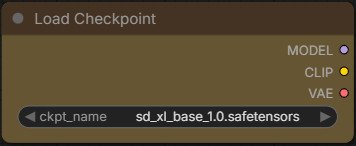
A standard SDXL 1.0 workflow begins with the Load Checkpoint node to select the base model file (sd_xl_base_1.0.safetensors). This node exposes three essential outputs to the graph: the UNet Model, the dual CLIP text encoders, and the VAE.

While this basic configuration allows SDXL 1.0 to run smoothly, it creates a downstream tracking bottleneck. Standard checkpoint loaders do not natively export extended model provenance or custom parameter keys into the embedded workflow JSON. As this guide progresses, we will look at replacing this basic setup with a structured loading pipeline that records full model metadata directly into the workflow file.

Connecting the Primitive Node

Depending on your version of ComfyUI, the ckpt_name parameter on the Load Checkpoint node may appear as an internal dropdown menu or as an exposed input socket on the left side of the node.

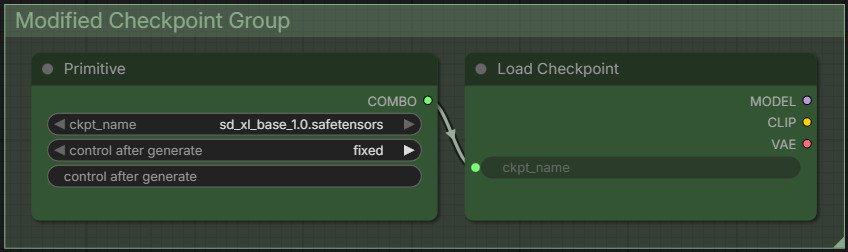
  • If the ckpt_name input socket is already visible: Click and drag a wire directly from the ckpt_name socket onto an empty area of the canvas. Release the wire and select Primitive from the node menu.

  • If ckpt_name appears as a dropdown menu: Right-click the Load Checkpoint node (or right-click directly on the ckpt_name dropdown) and select Convert ckpt_name to input (or Convert Widget to Input). Once the socket appears on the left side, drag a wire from it to create your Primitive node.

The connected Primitive node now handles your SDXL 1.0 checkpoint selection while outputting the exact model string downstream into the execution graph. Finally, you can select both nodes and group them using ComfyUI’s Group feature to keep your workspace structured.

To be continued….

Additional Articles

Kokoro TTS

Kokoro TTS

Coming Soon... Lorem ipsum dolor sit amet, consectetur adipiscing elit. Ut elit tellus, luctus nec ullamcorper mattis, pulvinar dapibus leo. Resource Links Kokoro TTS: Advanced AI Text-to-Speech Model with 82M parameters Additional...

Stable Diffusion XL 1.0

Stable Diffusion XL 1.0

Coming Soon... Lorem ipsum dolor sit amet, consectetur adipiscing elit. Ut elit tellus, luctus nec ullamcorper mattis, pulvinar dapibus leo. Resource Links Stable Diffusion XL - SDXL 1.0 Model - Stable Diffusion XL Additional...

Leave a Reply

Your email address will not be published. Required fields are marked *

Scroll to Top